Translating your guide
One guide, up to fifteen languages: every word your visitor reads, including the names of your ways in.
With premium, a guide can speak every visitor's language without you writing it twice.
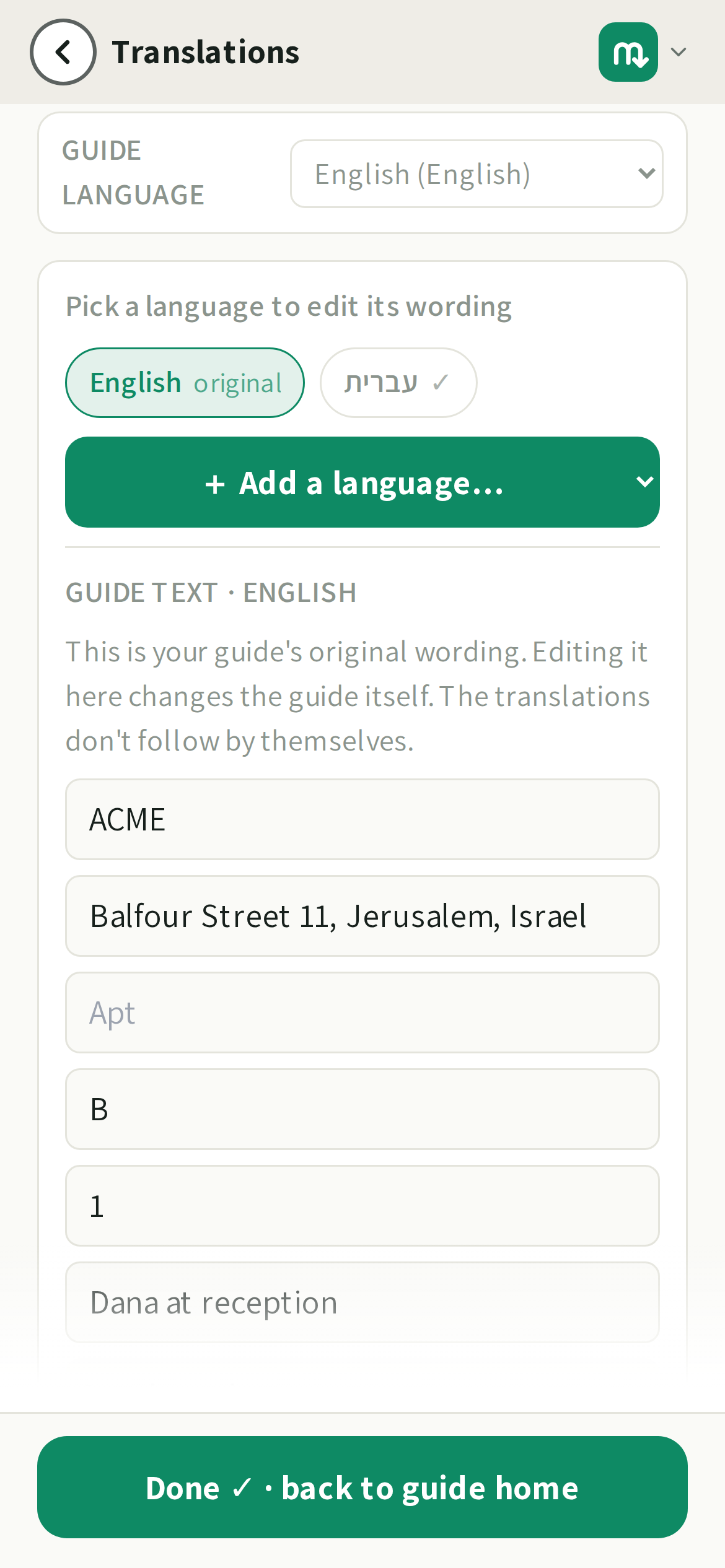
Turning it on
- 1Open the guide and go to the languages option (premium).
- 2Pick the languages you want alongside your original. Fifteen are supported: English, Spanish, French, German, Italian, Portuguese, Dutch, Polish, Romanian, Turkish, Greek, Russian, Ukrainian, Arabic and Hebrew.
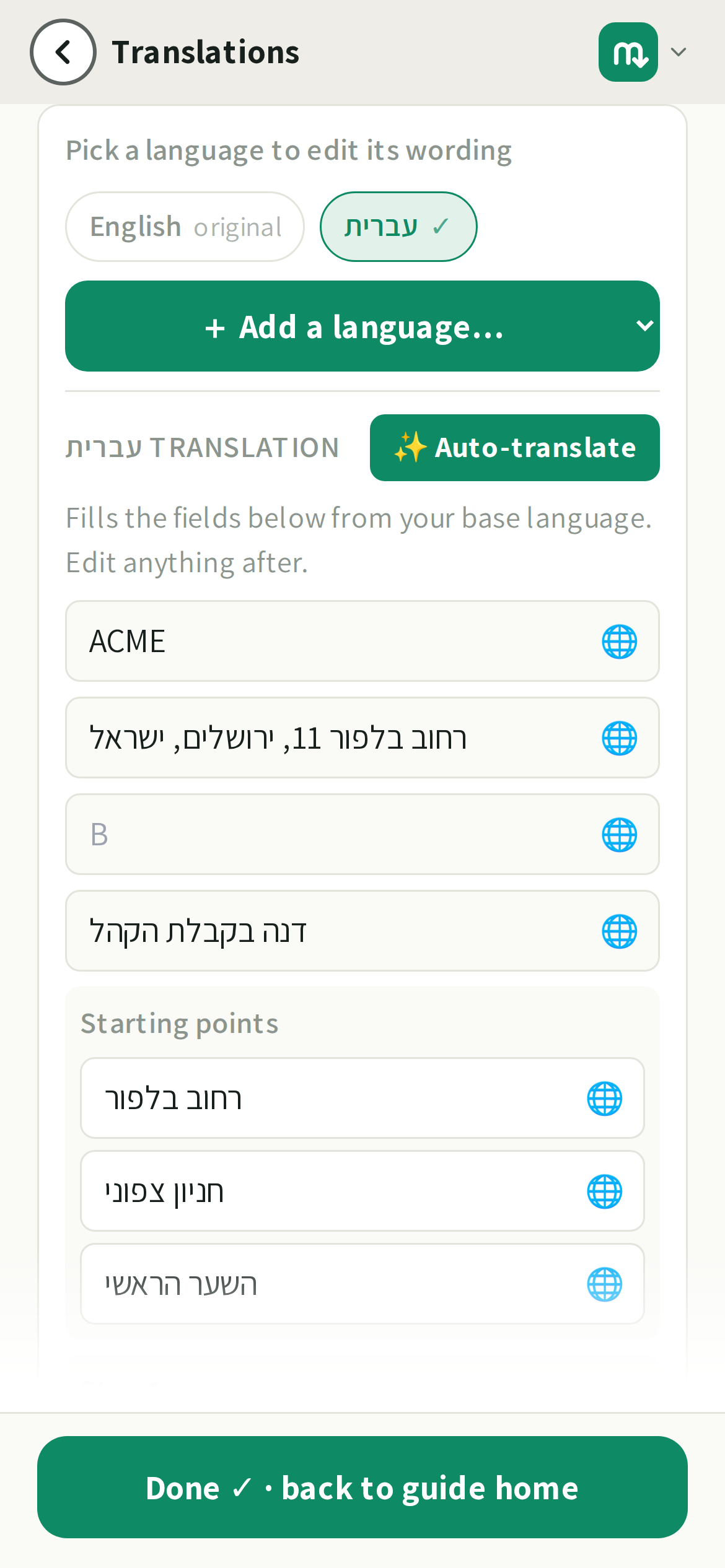
- 3Tap ✨ Auto-translate and mikum.me fills the whole language in for you. Review anything you want to fine-tune.
Editing a translation on the photo itself
You don't have to come back here for every small fix. Open a photo's mark-up screen and, on a guide with more than one language, a small row of the guide's languages sits just above the instruction. Tap a language and the instruction switches to that language's wording, ready to edit: the base wording stays behind it as grey placeholder text so you can see what you're translating, and the field keeps its own 🌐 button for a fresh translation of that line. This screen (where the address and the labels drawn on your photos live) is one tap away, under Translations on your guide's edit home.
💡Whichever language you picked for the app itself (the Language row in your account menu) is chosen for you there: switch the app to Hebrew and a guide that has Hebrew opens on its Hebrew wording, not on the original.
Moving between languages, and fixing the original
The languages screen always has one language open under the row of language buttons, and the first button is your guide's own: the language you wrote it in, marked original. Tap another one and that language's wording opens in its place; the badge on each button says whether it already has text (✓) or is still empty.
Tap original whenever you want to see (or fix) the source text a translation was made from. The location name, the address, the instruction under each photo and the labels drawn on them are all editable there, so a typo in your own wording doesn't send you back through the photo screens to correct it. Editing the original doesn't rewrite the translations: tap the 🌐 on each line you changed to refresh it.
Removing a language
Open the language you no longer want and use Remove … translation at the bottom of its panel. It asks before it does anything, and it only deletes that one language's wording: your original text, and every other language, stay exactly as they are.
What gets translated
Everything on that screen is a field your visitor actually reads:
- The guide's name and address.
- Every photo's instruction line.
- The names of your starting points: what the visitor picks from on the "where are you coming from?" screen.
- Any text labels you drew on a photo.
Arrows, circles and pins carry no words, so there is nothing to translate about them: they look identical in every language.
Changing which language the guide itself is written in
Guide language, at the top of the languages screen, is the language your guide is actually written in: the one every other language is a translation of.
Pick a language you have already translated the guide into and mikum.me offers to swap the two: that translation becomes the guide's own wording, and everything written until now is kept as a translation into the language you were on. Write in English, translate to Hebrew, then decide Hebrew should have been the original. Say yes and it changes places. Nothing you wrote or reviewed is lost, and nothing has to be translated again.
Pick a language with no translation yet and it is a plain change of label: your text stays exactly as it is, in the language you wrote it in, and it is not translated for you.
Your organisation's name
Write your organisation's name once on the Account settings page, and fill in its translation in the second language field there, and every guide translation keeps that exact spelling instead of inventing one. A Hebrew name like פיברו that you translated to "Phibro" stays *Phibro* on every translated guide, rather than coming back as "Fibro".
Languages you never filled in are spelled to match the versions you did write, so the name still sounds like itself wherever a visitor reads it.
What the visitor sees
The guide opens in the language of the visitor's phone or browser, and they can switch with a tap. Your photos and mark-up stay exactly the same: only the words change. Anything you leave blank falls back to your original language, so a half-finished translation never shows an empty line.
💡Machine translation is a strong first draft, not a sworn one. For a critical detail (a gate code instruction, a safety note) skim the translated line and adjust the wording if needed.
Add a language later and only the new one is translated: your reviewed text is left untouched.
Visitors are not offered a machine translation of yours
When a visitor lands here with their phone set to any of the fifteen languages mikum supports, their browser stops offering its own "translate this page?" banner. Those are languages we lay out properly, right down to the right-to-left ones, and that you can publish yourself from this screen in a click, so a machine rendering of one of them is a step down from what the guide can be. If you have already published that language, the guide simply opens in it. If you have not, adding it here is what puts the guide in that visitor's hands. A visitor whose language mikum does not support at all, Japanese say, still gets their browser's offer: it is the only way they can read the guide, so we leave it alone.
Last updated Aug 25, 2026