Adding a photo from a video
Scrub a clip to any spot and add the frame there as a photo.
Some spots are much easier to catch in a video than to go back and photograph. A glass door you walk straight through, the one turn in a car park, the moment the path splits. If you have a clip of the walk, you can pull the photo out of it instead of returning to the building.
This works whether your guide was built from a video or from photos you uploaded yourself.
Add a photo from a video
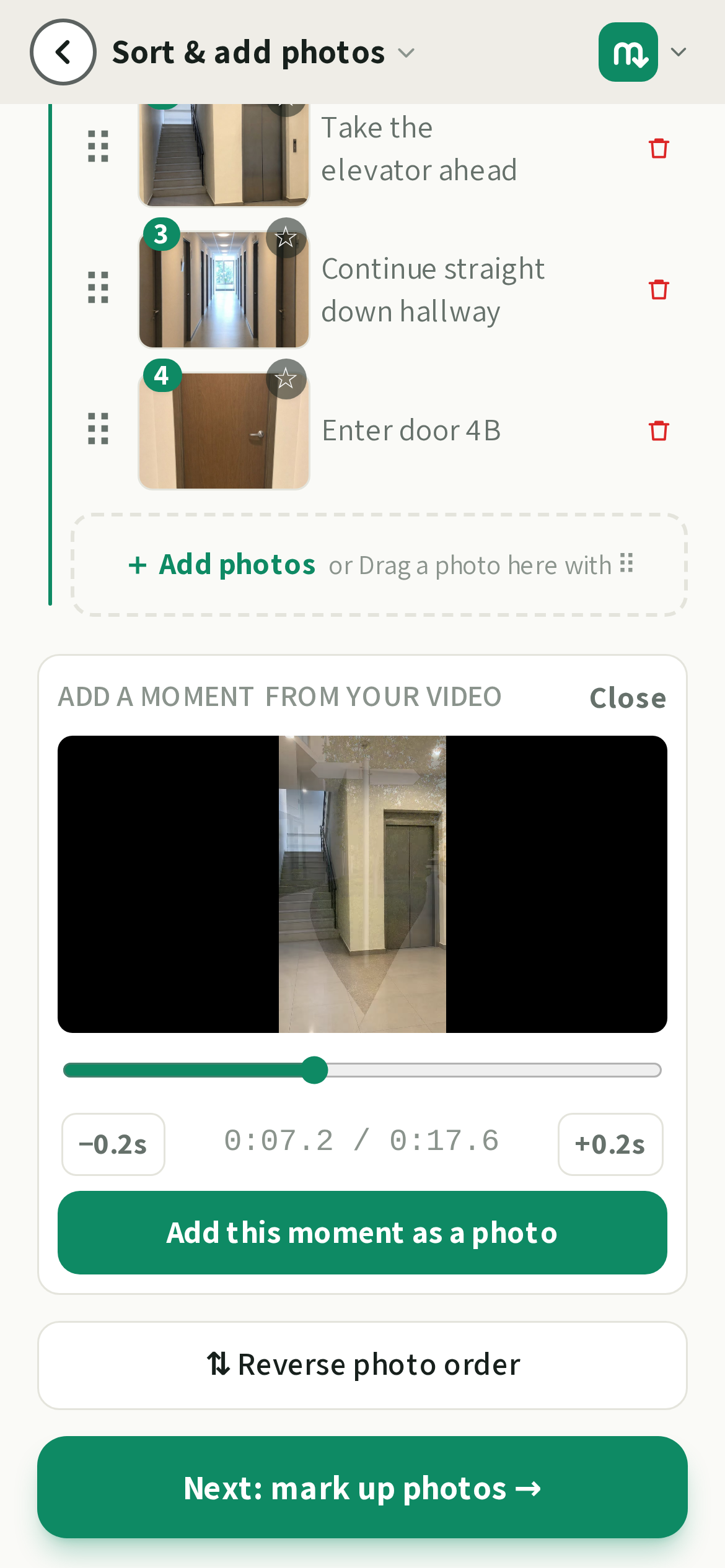
- 1On the photos step, find the dashed + Add photos box at the end of the group you want the photo in. Every starting point has one, and so does Everyone continues here at the foot of the list. Tap it and choose A video.
- 2Tap it and pick the clip. It opens as a strip you can scrub. Nothing is uploaded, and the rest of the video is left alone.
- 3Drag the slider to the moment you mean. The small −0.2s and +0.2s buttons nudge it frame by frame.
- 4Tap Add this moment as a photo.
- 5The new photo joins the list and its instruction is written for it straight away, like every other photo. You do not have to ask for it.
💡You do not have to land on a perfectly steady frame. We look at about half a second either side of where you stopped and keep the sharpest one, so a blurry moment under your finger still becomes a clear photo.
After a video import
When your guide was just built from a video, the same strip is offered at the top of the photo list as Missed a spot? Add it from your video. The automatic pass keeps the moments where the view changes most, and this is how you add the ones it did not rank highly enough.
The marks under the slider show which moments are already photos: grey for the ones we picked, green for the ones you added. Gaps between the marks are the parts of the walk nobody has a photo of yet.
Where the strip opens, and where the photo lands
The box you tapped decides two things: the strip opens at that end of the list (up top for a starting point, down at the foot of it for the shared walk) and the moment you pick joins that box's own group, so there is nothing to drag afterwards. The Take or choose a photo half of the same box works exactly the same way.
Straight after a video import the strip stays at the top and each moment is slotted into the walk by its own timestamp instead, so a moment from the middle of the clip lands in the middle of the guide.
Using a second video
The strip always belongs to one clip, the one you last picked. If the moment you want is in a *different* video, tap any + Add photos box again and choose Another video. The strip swaps to the new clip, already open, so you can scrub straight away. There is no limit: photos and moments from as many clips as you like can end up in the same guide, and the boxes stay available the whole time.
Switching clips clears the grey and green marks under the slider. Those are positions on the old video's timeline and would point at the wrong seconds on a new one. The photos you already added are untouched.
Good to know
The clip itself is never uploaded and is not kept: only the frames you choose become photos. Leave the guide and come back and the strip is gone, but you can always pick the same video again from any + Add photos box. Choosing it there only opens the scrubber; it does not rebuild the guide or add anything you did not tap.
Last updated Aug 23, 2026