Door and gate codes, safely
Switch a gate on at the photo, choose how it opens on the Gates & ETA screen — one behaviour per gate.
A code typed into the guide is never printed in the page itself. It is revealed only after a check you choose — and every gate in a guide chooses its own.
Two steps to a gate
- 1On the photo of the door or gate, switch on This photo has a gate / door code. That is all the photo itself asks: mikum.me takes you straight to that gate's card on the Gates & ETA screen.
- 2On the card, pick how the gate opens — one of the five ways below — and fill in the one thing that way needs: the code, the gate's phone number, or the Shortcut's name.
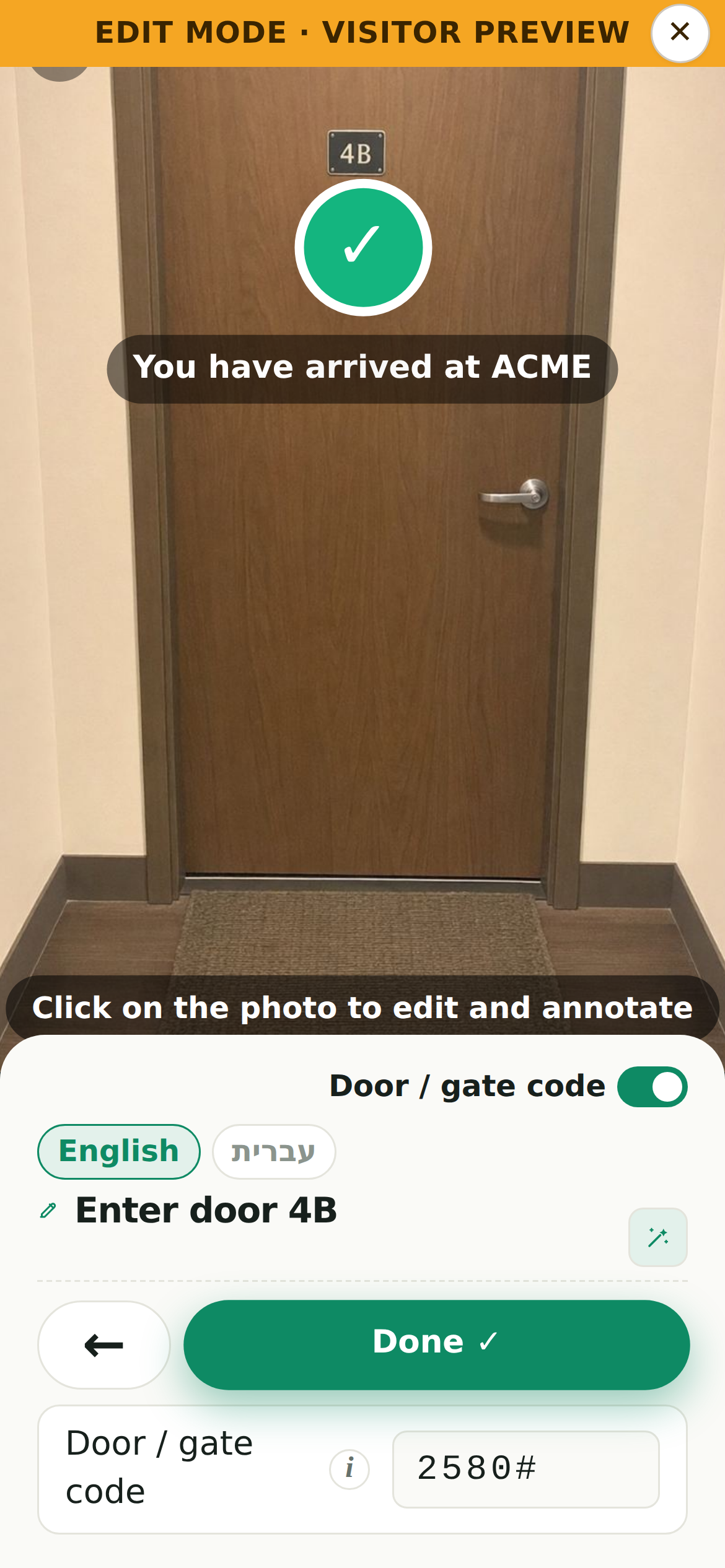
The line under the switch always says what the gate does right now ("Opens with: code 4711#", "…code after your approval", "…calls the gate"), and tapping it opens the same card again. A place with two gates keeps a separate card, and a separate behaviour, for each. Switching the photo's gate off clears everything the card held.
Five ways a gate can open
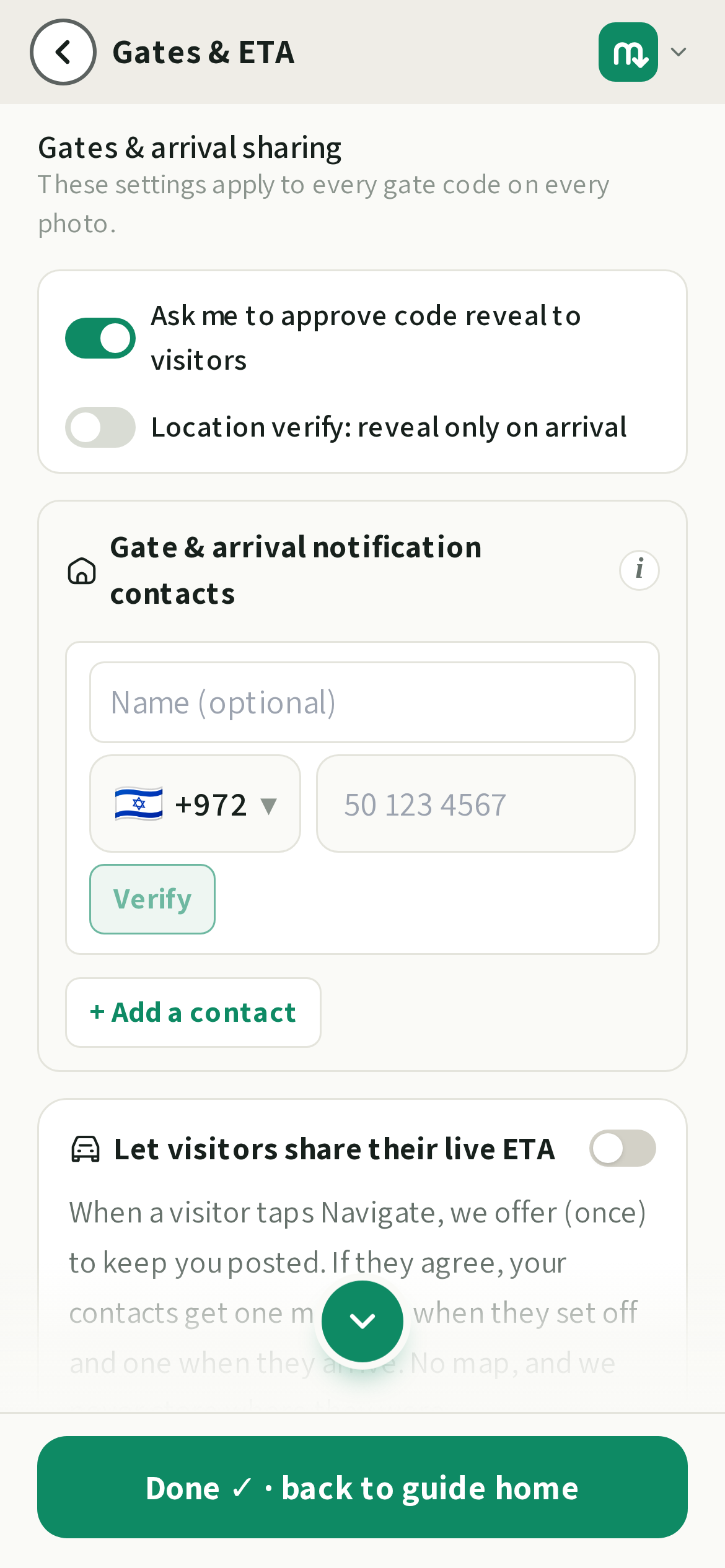
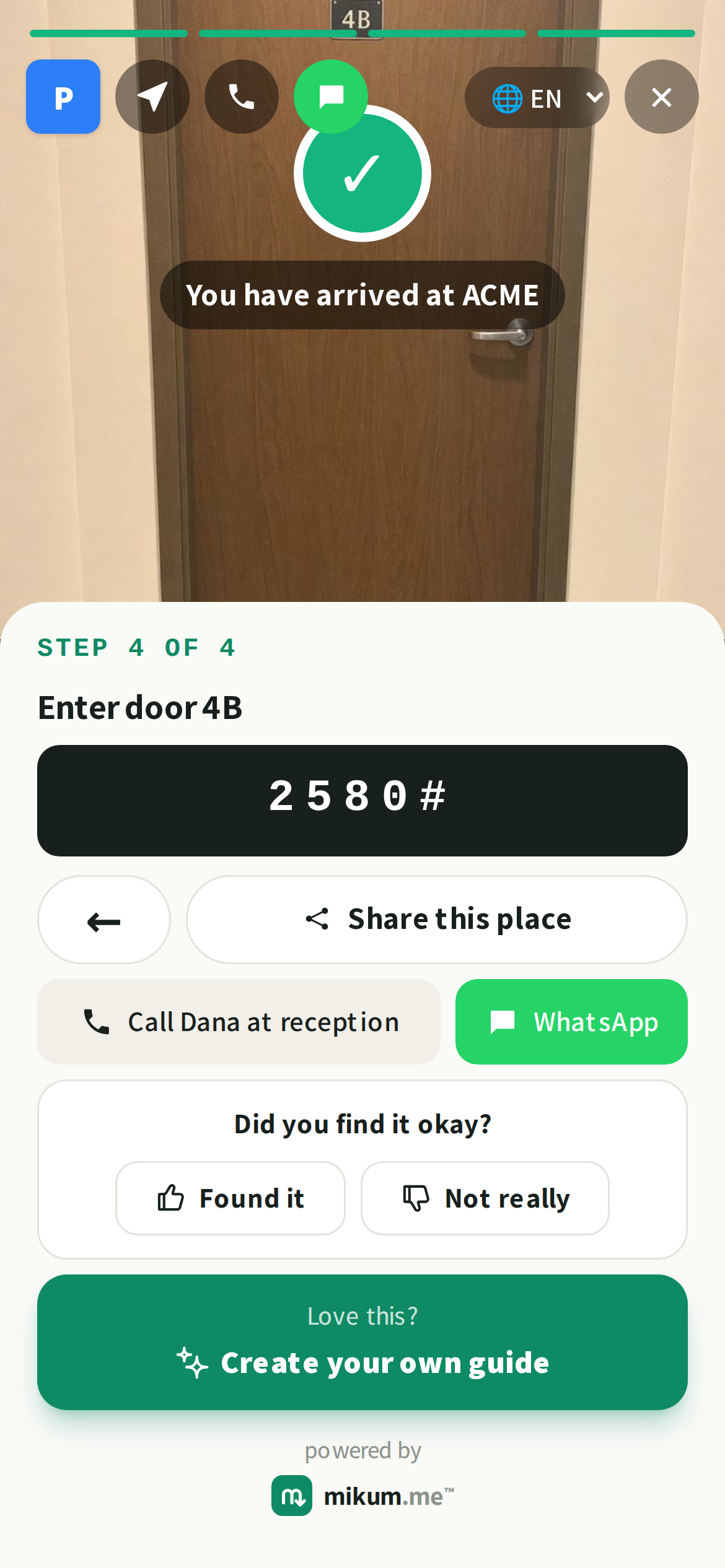
- Show a code I type here — anyone with the link sees it, covered: the visitor taps Tap to reveal door code. Fine for a lobby code that changes often.
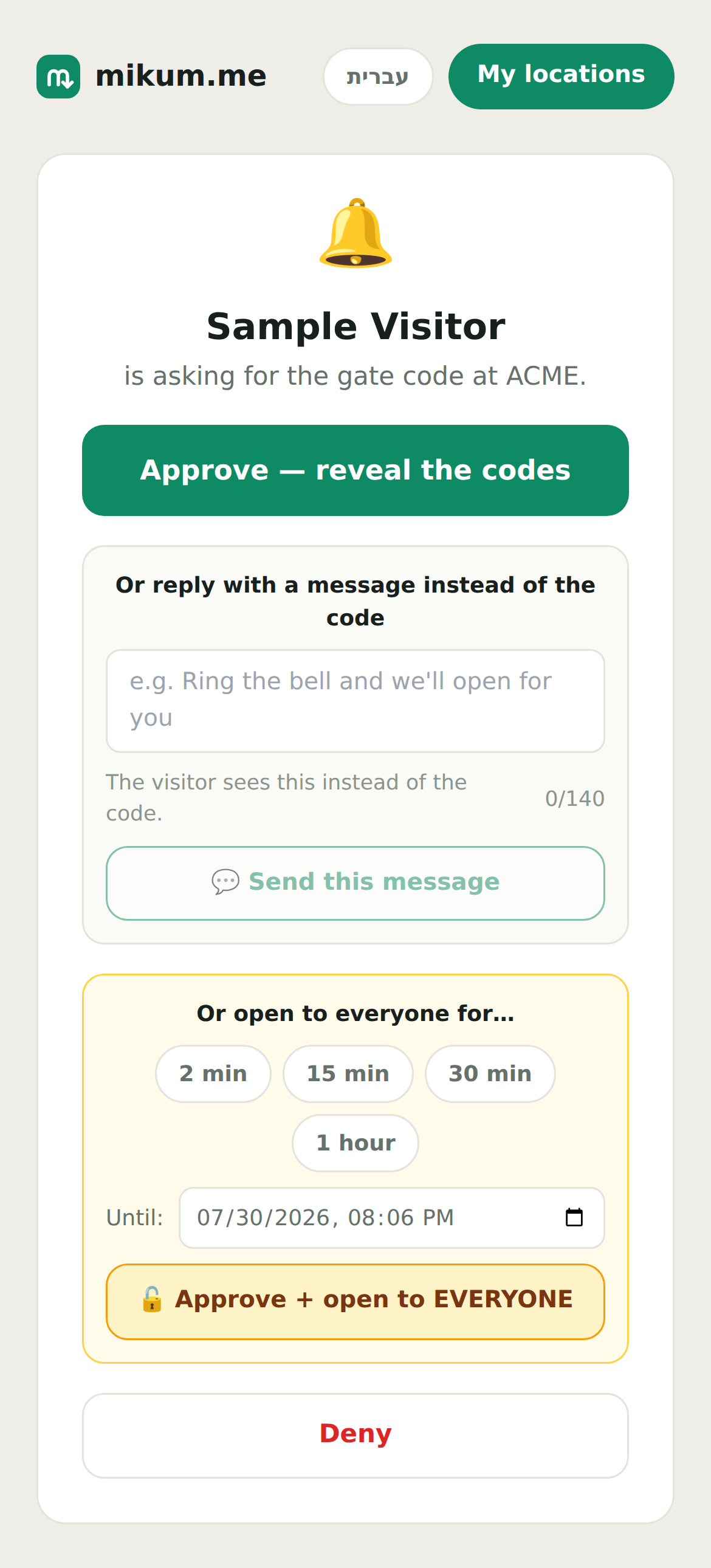
- Show a code, but only after I approve — the visitor taps a button, you get a text, and one tap from you reveals the code to that visitor only.
- I'll type the code each time — don't store it — there is no code in mikum.me at all. You type it into the approval screen when someone asks, and it travels to that one visitor encrypted. See "Or don't give us the code at all" below.
- Call the gate for me — for a gate with no keypad, opened by calling the SIM in its motor. See "Gates that open with a phone call".
- Run my Shortcut — for a gate app like PalGate that has no number to call. See "Gates that open with an iOS Shortcut".
Picking a different way clears the previous way's field — a code is not a phone number, so nothing is carried across.
💡Every way but the first needs a notification contact. The first time you pick one, mikum.me asks for a number right there: a name (optional), the phone, and Verify by SMS. One number receives gate requests and arrival messages alike, and it is never shown to visitors. The Gates & ETA screen manages the list afterwards, and the same question comes back at publish time if you dismissed it.
Before you publish
The bottom of the Gates & ETA screen sums it up in plain words — "3 gates: 2 show a code, 1 after your approval. Notifications go to Dana." — and names any gate that is not finished yet. Publishing pauses on exactly those two things: a gate whose code, number or Shortcut name is still empty, and a feature that texts a contact while the list is empty. Fix it on the card the pause opens to, then tap Continue publishing.
Good to know
Approval requests are rate limited, so nobody can flood your phone by tapping the button repeatedly. If a visitor asks again while your first request is still unanswered, they simply get put back on the waiting screen — you are not texted twice — and a guide stops sending altogether after a handful of requests in a few minutes.
When a request reaches you, you do not have to choose between revealing the code and refusing. The approval screen also lets you type a short message ("Ring the bell and we will open for you", "The gate is already open") and the visitor sees exactly that text where the code would have been. No code is revealed in that case.
If your number is in the US or Canada
A +1 number gets one extra line under it: a tick box agreeing to receive the approval texts. US and Canadian carriers require that agreement to be given separately and on purpose, so the box starts empty and the contact is only saved once you tick it. Every other country is unchanged: no box, nothing to tick.
Location verify: one setting for every gate
Location verify is the one gate setting that stays a decision for the whole guide, at the bottom of the Gates & ETA screen: the code — or, on a call or Shortcut gate, the Ask the host to open the gate button — appears only once the visitor's phone is physically within the radius you set. It is a property of the address, not of a gate, which is why it is not chosen per card. Nothing reaches your phone until the visitor is really there, which matters most on a call or Shortcut gate, since at the other end your gate really does open.
Visitor ETA sharing lives on this same screen. You can reach it while editing: from the guide's home screen, from the line under any gated photo, or by tapping the step title at the top of any step and picking Gates & ETA.
Opening the gate to everyone
From the approval screen you can also open the gate to everyone until a time you pick (the rest of the evening, say) and every visitor gets the code with no request at all.
What they see during that window is the ordinary covered Tap to reveal door code button, and one tap on it shows the code. Nothing changes on your side: the window opens, closes and expires exactly as before.
Gates that open with a phone call
Some gates have no keypad at all: a SIM card sits in the gate motor, and the gate opens when someone calls that number. Pick Call the gate for me on that gate's card and a phone-number box — country code plus number — appears for the number that opens the gate.
That number is never shown to your guests and never leaves our server for their phone. What the visitor sees at that step is a button: "Ask the host to open the gate". They tap it, give their name (a signed-in visitor is recognised automatically), and wait while we text your notification contacts. Your text opens a page with one button, "Open the gate", which dials the gate's number from your phone. The visitor's screen switches to "the host is opening the gate" with a button to call whoever opened it, in case the gate stays shut.
Because the request is a text message to somebody, this gate needs a notification contact — mikum.me asks for one the moment you pick this way, and will not let you publish without one. If two of your contacts open the same text, the second sees "already opened by…" — with the dial button still there, so they can open it again if the visitor is still outside.
Gates that open with an iOS Shortcut
Some gate apps — PalGate is one — have no callable number at all, only their own app. If that app can be triggered by an iOS Shortcut, build one in the Shortcuts app (wrapping whatever action opens your gate), give it a clear name, then pick Run my Shortcut on that gate's card and type that exact name in.
The Shortcut's name is never shown to your guests. What the visitor sees at that step is the same button as a phone-call gate: "Ask the host to open the gate". Your text opens a page with one button, "Open the gate", which runs your Shortcut on your own phone.
This only works on an iPhone with that Shortcut already set up — there is no equivalent on Android.
Or don't give us the code at all
Pick I'll type the code each time — don't store it and there is no code in mikum.me for that gate — not in the guide, not in our database, not in a backup.
When a visitor asks, you get the same text message as always. The approval screen shows a box to type the code into, and your phone encrypts it before it is sent, using a key that only that one visitor's browser can undo. We pass on a scrambled string we cannot read ourselves, and it is gone when the request expires.
💡Worth knowing: the code reaches the browser that asked for it. If your visitor asks on their phone and then opens the guide on a laptop, they simply ask again. And because we hold nothing, this gate cannot be opened to everyone for a while — each visitor gets their own answer from you.
Last updated Sep 2, 2026