Telling visitors where to park
Mark the parking on your guide's map, and every visitor gets one-tap navigation to it.
Parking is where a lot of visits go wrong: someone arrives on time and then circles the block for ten minutes. A parking spot marked on your guide's map heads that off.
Where parking lives
On the map of the first step, right next to your address. There is no separate parking step: one screen holds everything about *where this place is*, the exact entrance, the parking, and any other point a visitor might set off from.
Adding a parking spot
- 1On the first step (name & address), tap the map. It opens full screen, titled "Location, parking and starting points".
- 2Tap + P Add parking and additional starting points.
- 3Type a name for the spot ("Main parking", "Underground lot", "Street parking on Herzl") then tap 🅿️ Parking.
- 4The pin drops onto the map straight away. Drag it if it needs nudging, then tap the back arrow.
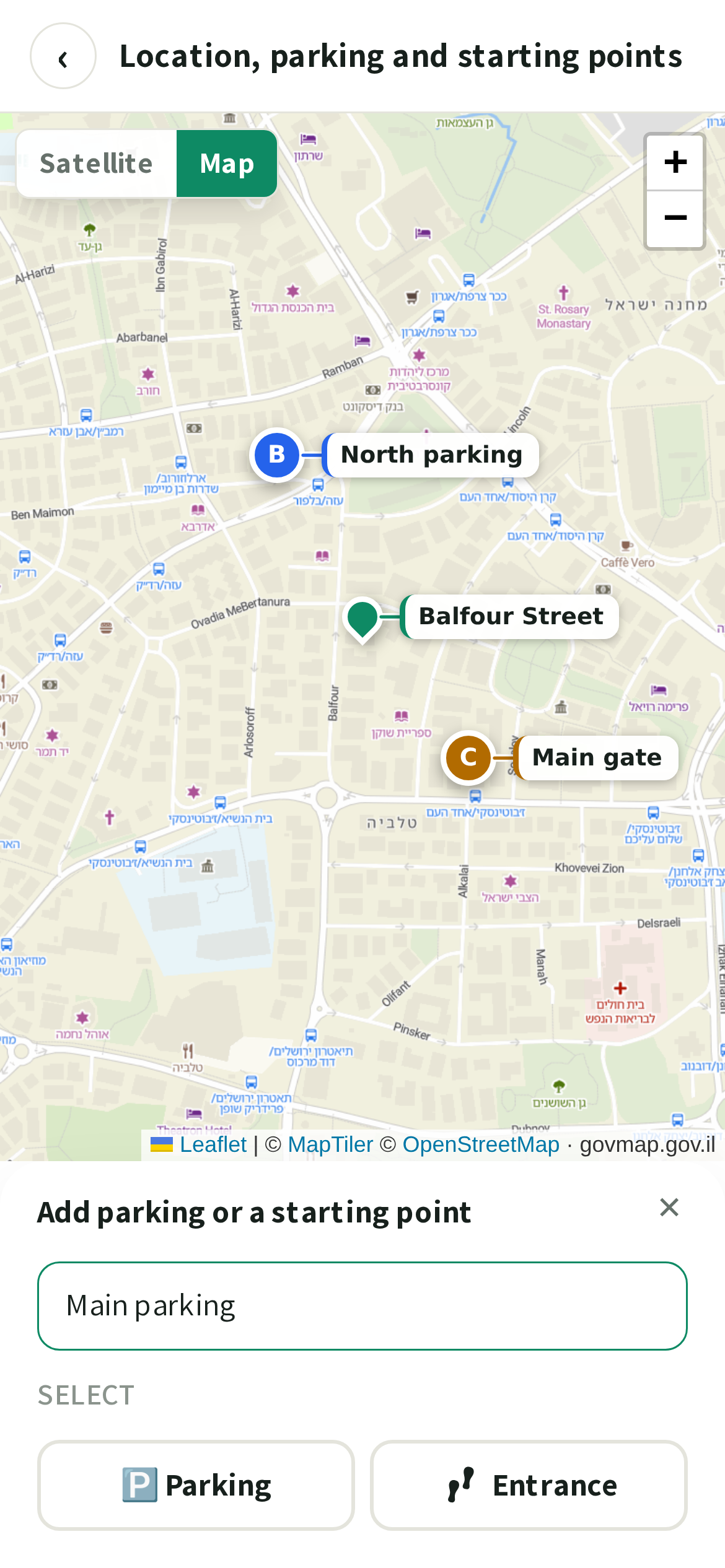
💡Every spot you add is listed under the map. Tap a row to centre the map on it, the ✎ beside it to rename it, or the ✕ to remove it. The ✎ also holds the type: switch a point between 🅿️ parking and an entrance there, without losing where you placed it or the photos tagged to it. Adding your first spot also names the green dot Main starting point: it is a place to start from as well, and now there is a second one to tell it apart from. Removing your last parking spot switches the parking map off as well, so visitors stop being offered a map with nothing on it: adding a spot brings it straight back. You can have four points in all: parking spots and extra entrances together.
What a visitor sees when they tap Navigate
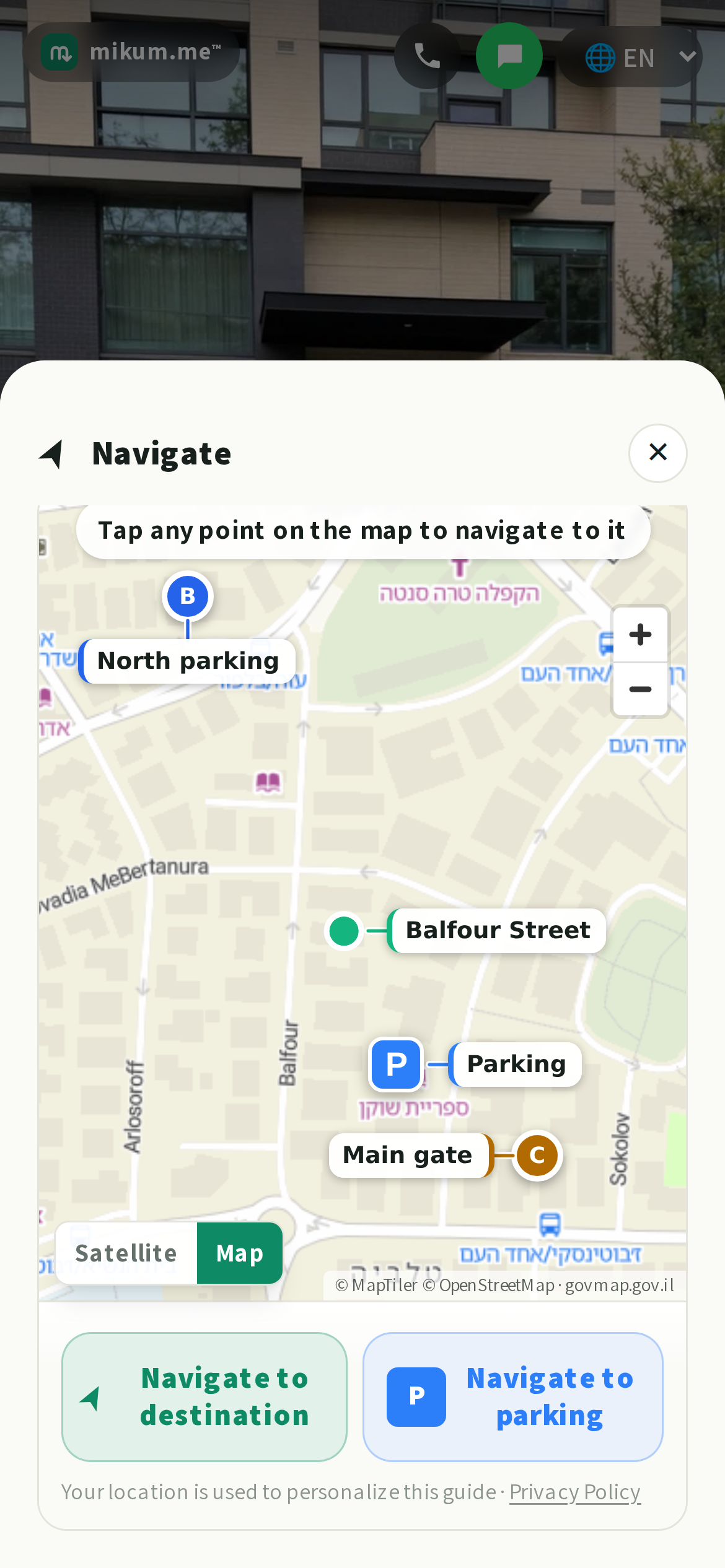
Navigate on the guide's home screen opens the map itself, not a list of apps. It opens zoomed to fit everything at once (your parking spots, your other starting points, and the destination in the middle) so a driver can see how the pieces sit before they choose anything.
- Tap any point on the map (a P pin, a lettered starting point, or the green destination dot) to get directions to that exact spot in Waze, Google Maps or Apple Maps.
- Navigate to destination, at the foot of the screen, is the same as tapping the green dot.
- Navigate to parking (the blue one) picks the spot closest to the visitor, zooms the map onto it and offers the apps for it. Closing that offer leaves the map open, so they can pick a different spot instead.
- Once they pick an app, the guide moves on to the walk behind them. If the spot they chose belongs to one of your ways in, it opens on that way in's first photo; otherwise it opens on the first photo of the walk, or asks "where are you coming from?" on a guide with more than one way in. Coming back from Waze, the guide is already where they need it.
- Closing the screen without choosing an app puts them back on the guide's home page, nothing lost.
💡If you've turned on "let them know you're on the way", that offer sits at the top of this screen, right where a visitor reads it just before setting off.
💡Map or satellite? The navigation screen opens on the street map: the names, one-ways and junctions a driver actually needs on the way over. A Map / Satellite switch sits in the map's bottom-left corner, so a visitor who'd rather recognise the roof or the gate from above is one tap away from it.
Good to know
- More than one spot? They are numbered P1, P2… in the order you added them, and the guide names the number it picked when a visitor asks for the nearest one.
- Say the useful thing in the name. The name you type is printed on the visitor's map, right beside its pin, so "Blue-and-white on Herzl", "Lot gate: ring for the barrier" and "Free after 7pm" are read at a glance, before anyone taps anything.
- Your own point is named too. As soon as there is more than one point on the map, the green destination dot shows its name as well: whatever you called your main starting point, or the street it sits on. That is what tells a driver which dot is the place they are heading for and which is the parking beside it.
- Names find their own room. Every name is joined to its own pin by a thin line, so it is never in doubt which name belongs to which point, and a name that would land on top of another one steps aside: the line simply grows with it. Where a corner is too crowded for all of them at once, some wait until the visitor zooms in: the pins themselves never move, and tapping one always names it.
Last updated Aug 12, 2026