Sharing your guide
One link, no app, works on every phone.
Your guide lives at mikum.me/your-link. Anyone who opens it gets navigation to the entrance and then the photo walkthrough.
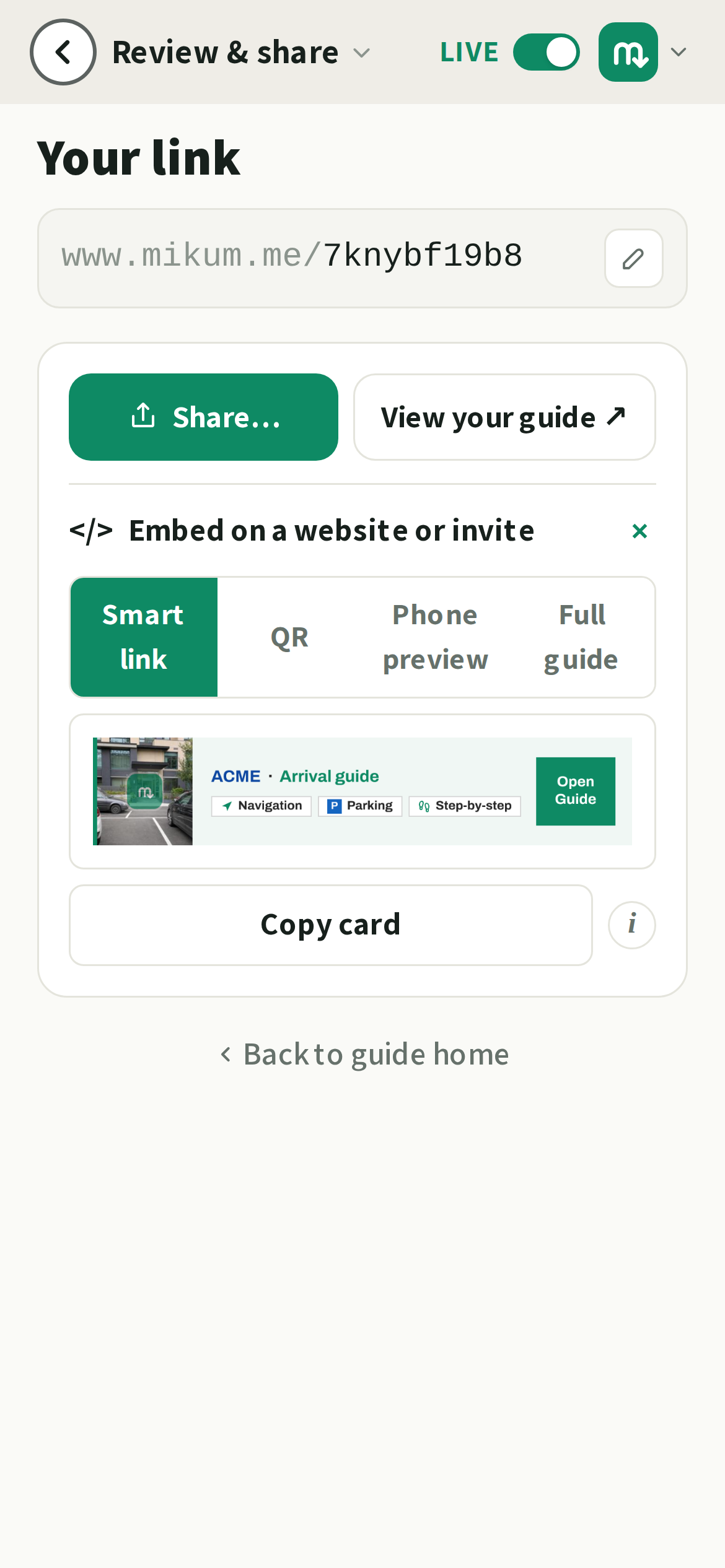
Three ways to send it
- 1Share button: from your guide list, sends the link through WhatsApp, SMS or anything else on your phone.
- 2Paste it: into a booking confirmation, a calendar invite, or your website.
- 3Print it: the link is short enough to put on a sticker or a sign at the gate.
Inside a guide, the share icon at the top of its home screen (on the same line as the address) is the shortcut to all of this: it opens Review & share, where the link, the QR code and the embed snippets live.
💡Send it before the visit, not during. People read the guide best while they are still deciding when to leave.
Embed it on your site or in an email
Open Embed on a website or invite at the bottom of the Review & share screen and pick a look. Each option comes with its own copy button.
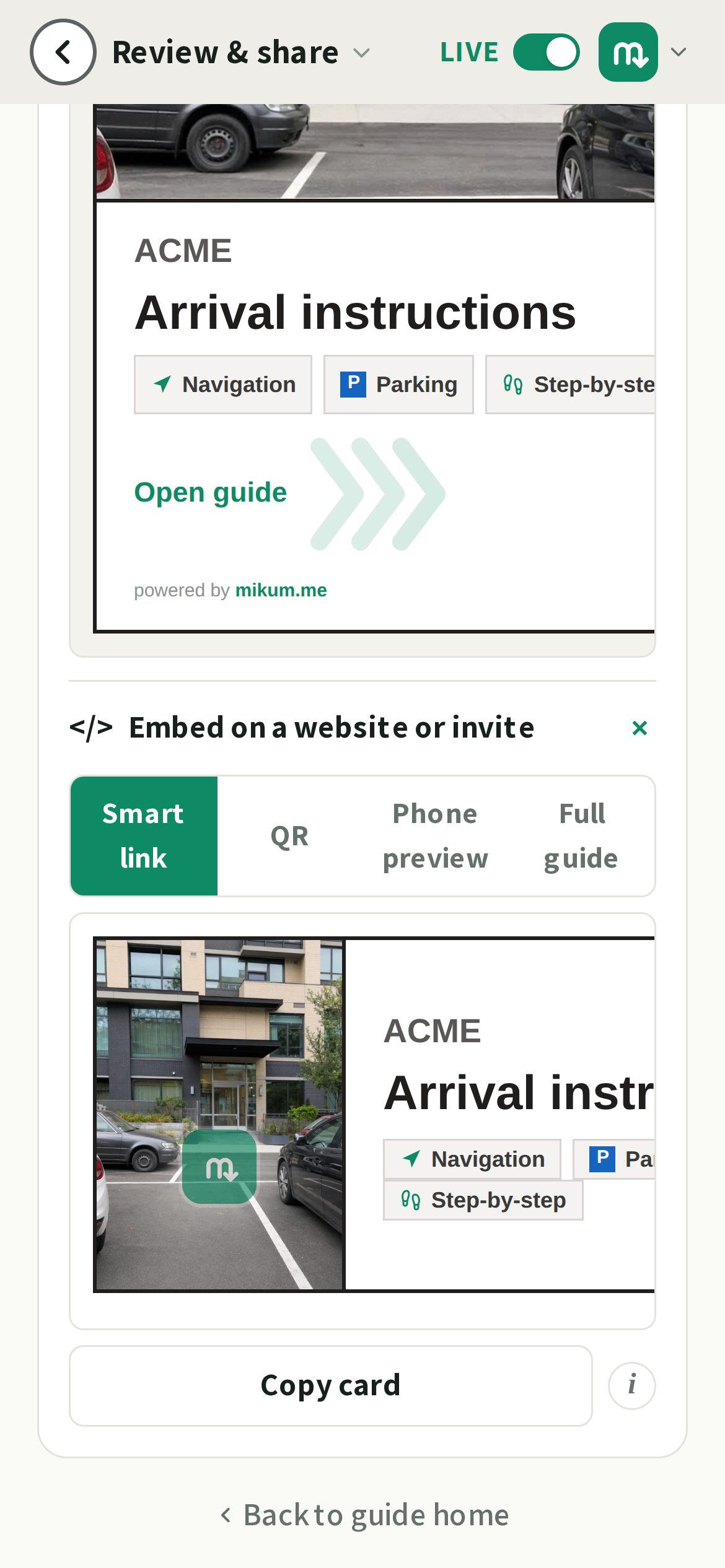
- Smart link (the default): a small card with the cover photo, the guide's name and the link. Paste it straight into a Gmail or Outlook signature, or into a calendar invite that renders HTML. In WhatsApp or Slack you do not even need it: paste the plain link and it unfurls into the same kind of preview on its own.
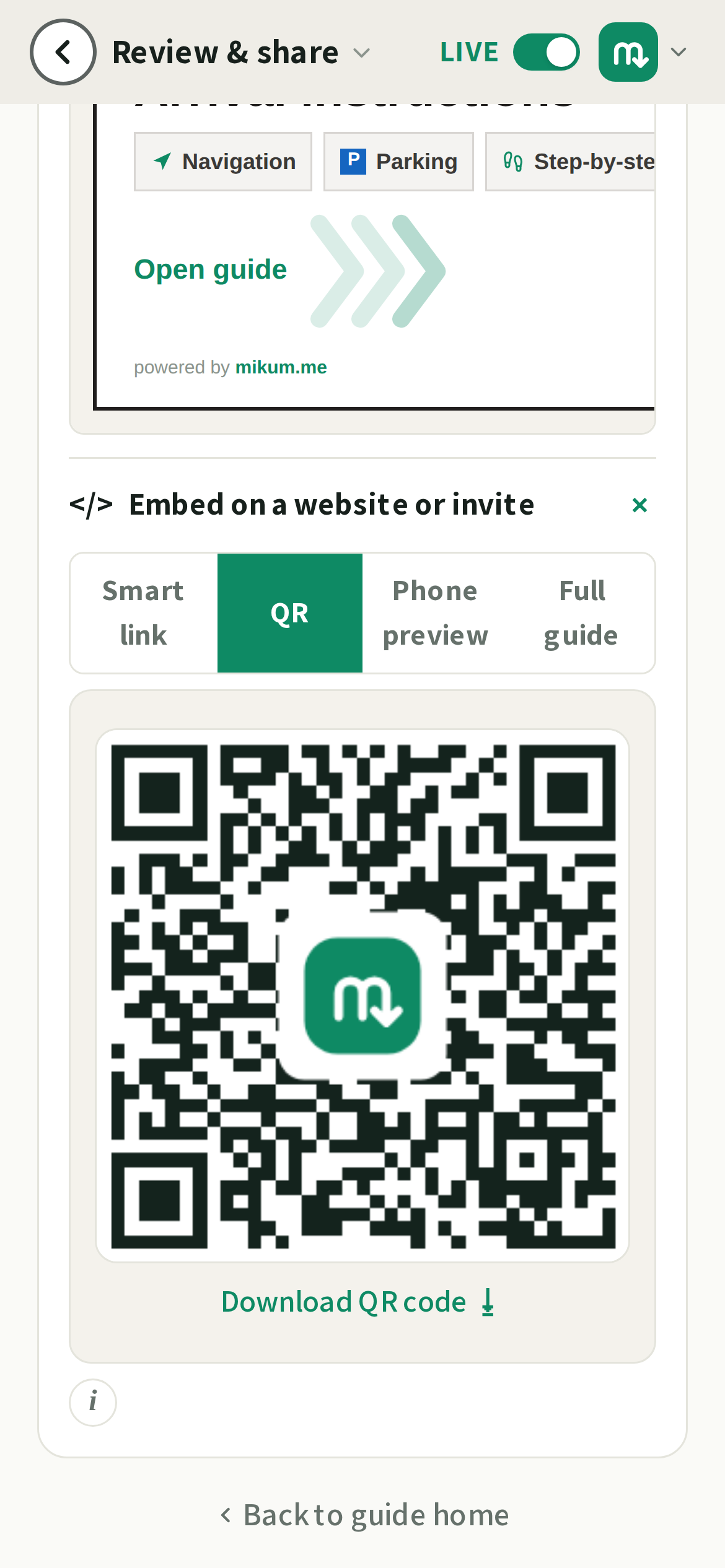
- QR: the scannable code from step 4 above. This one has a Download button instead of a snippet, because you print it rather than paste it.
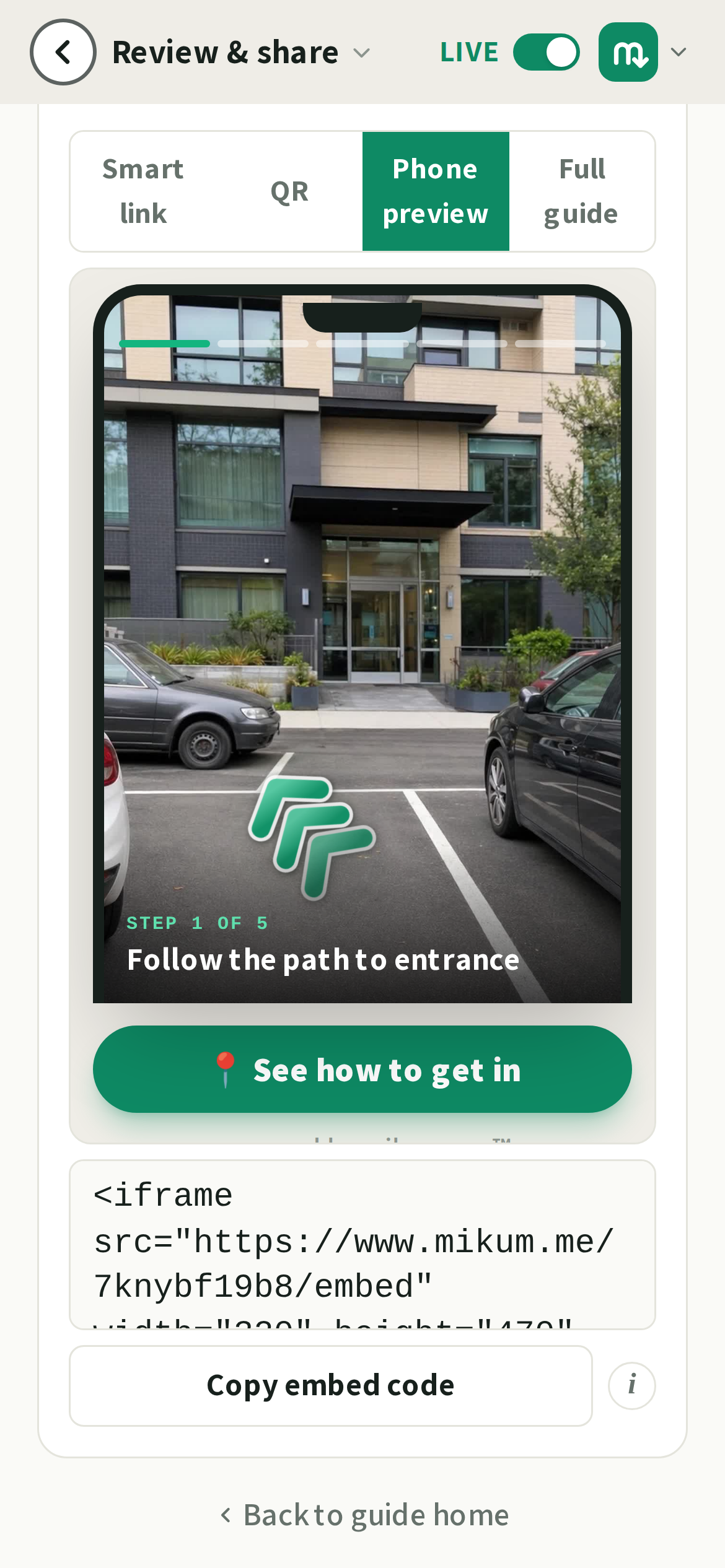
- Phone preview: a compact phone-shaped widget that flickers through your photos with a "See how to get in" button. It suits a business or listing site, next to the booking details. With white-label (premium) the mikum.me line drops off it too.
- Full guide, the whole interactive guide, inline in your page: navigation, parking and the photo walkthrough all behave exactly as they do on the real link.
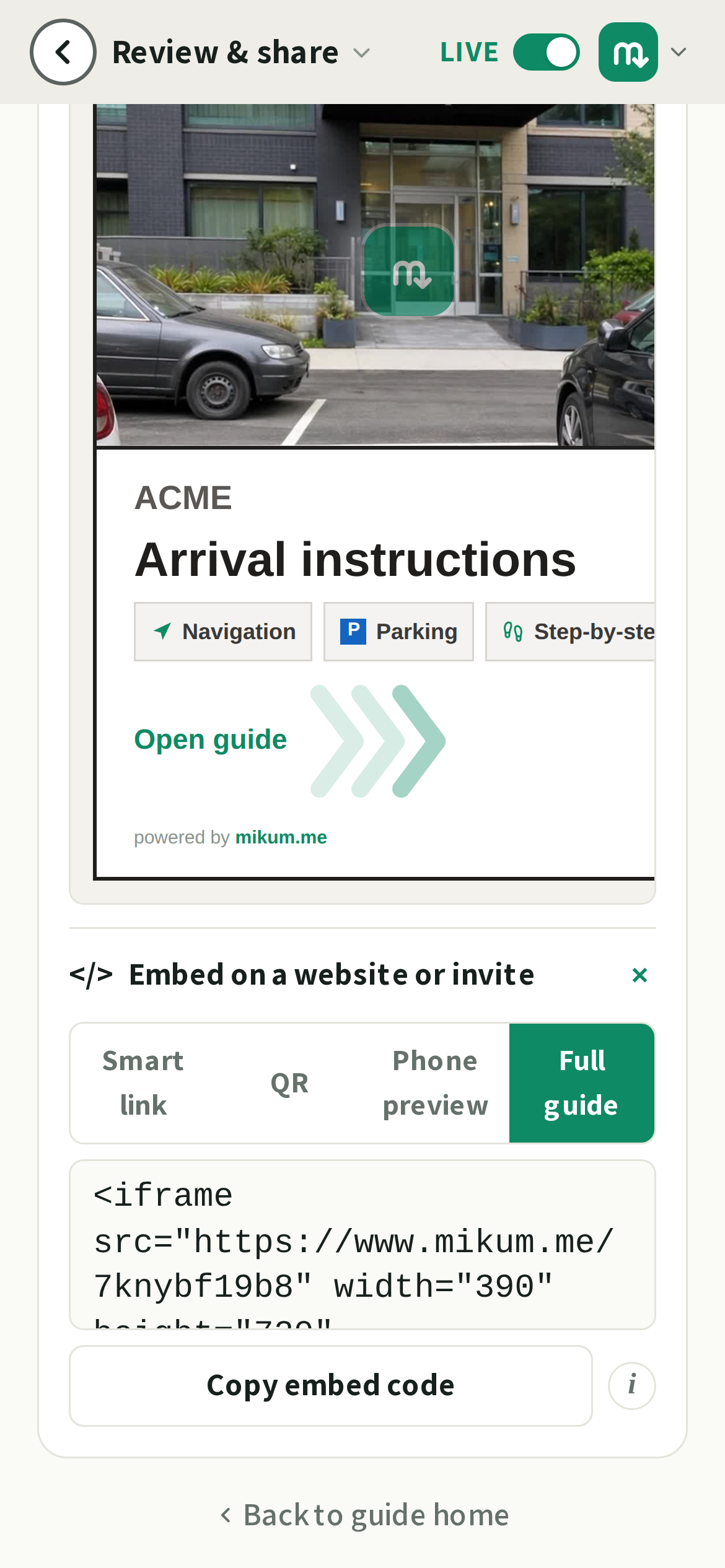
💡Paste the HTML once and you are done. Edit your guide afterwards and the embed follows along, and even changing your guide's link will not break an embed you already pasted.
Who can see it
A published guide is public to anyone holding the link. That is what makes it work without an app. Sensitive details (gate codes) stay behind the protection you chose. You can unpublish at any time from your guide list; the link then stops working until you publish again.
What it looks like when you paste it
Paste the link anywhere that previews links (WhatsApp, iMessage, Slack, an email) and it opens out into a card: your photo with the mikum.me logo merged into the middle of it, and under it a green line and a white ribbon carrying the name of the place, the words "arrival instructions", and small tags for what is inside: navigation, parking and the step by step walk. People see a set of directions rather than a photo somebody forwarded, and a link that looks like directions is a link that gets opened.
On premium with your own branding turned on, the same card is drawn without our badge and without the mikum.me name on it: our mark is not added to anything you share.
💡Chat apps remember a preview for days. Change the cover photo and paste the same link again straight away, and the old card can hang around for a while: that copy is theirs, not yours.
Last updated Aug 15, 2026