Changing your guide's link
Move a guide to a nicer address. Links you already shared keep working.
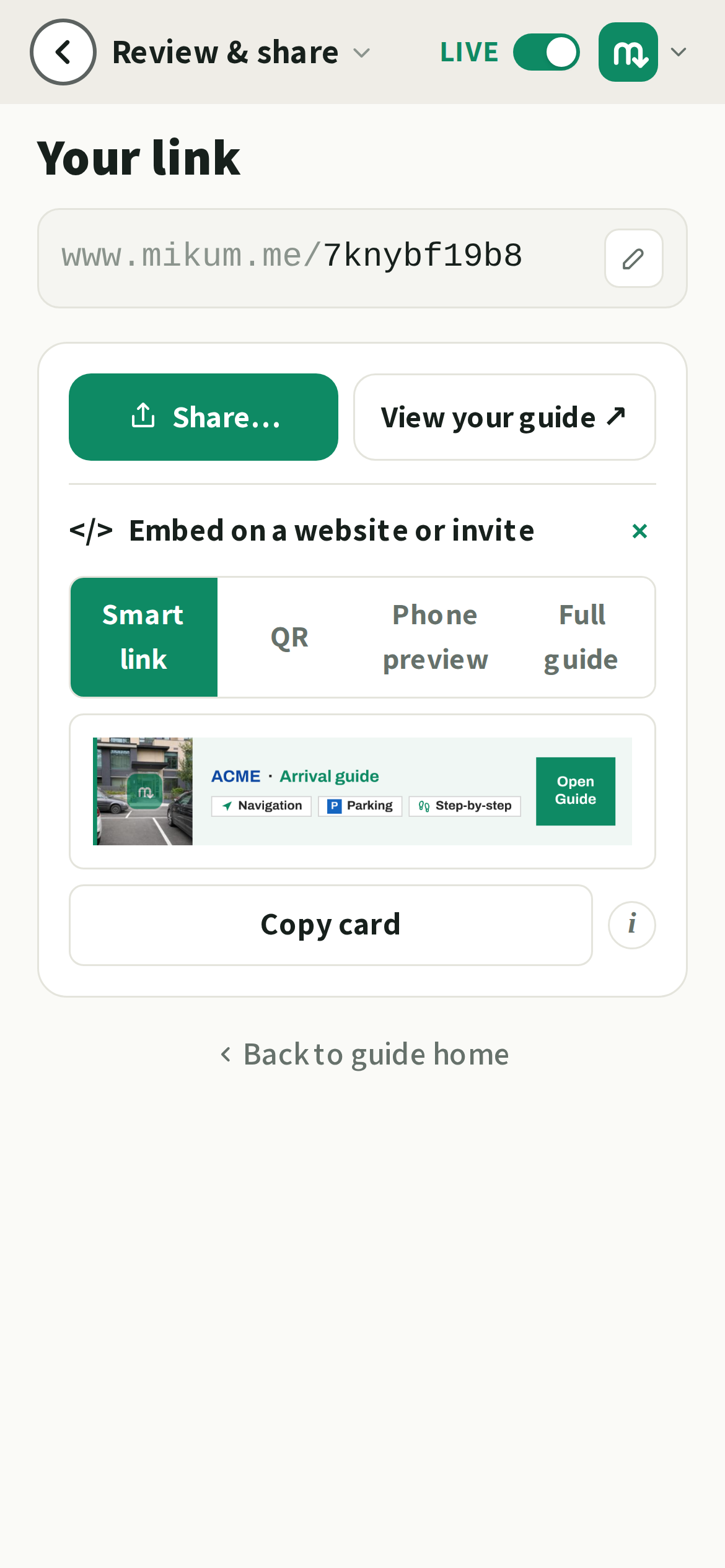
Guides start life on a short, auto-generated link. With premium you can move a guide to a link of your own (mikum.me/acme-tel-aviv instead of mikum.me/7knybf19b8) without losing the links you have already handed out.
How to change it
- 1Open the guide and go to Review & share.
- 2Tap the ✎ button at the end of the link field.
- 3Type the link you want. mikum.me tells you straight away whether it is free.
- 4Tap Change link. The new link is live straight away. The guide never goes offline.
Your old link still works
Anyone who opens the previous link (a message you sent weeks ago, a printed QR by the gate, a sticker on the door) is sent on to the new one automatically. They see the guide, not an error.
💡Because old links keep pointing at your guide, they stay reserved for you: nobody else can take a link your guide has used, and you can always move back to it.
Good to know
Rename as often as you like. Every link the guide has ever been live under leads to wherever it lives now. A custom link is a premium feature; free guides keep their auto-generated one, which works exactly the same for visitors.
Last updated Sep 2, 2026